Blog

  • Fully automatic backup/sync script with Unison

    I’ve been searching for something to replace offline files in Linux. It’s a great feature that Linux just doesn’t have where files on a share can be stored locally and synced when back on the network. A Dropbox like solution seems like a close enough alternative, but these programs are expensive and can’t be centrally managed. So I made my own, albeit less fully featured. Unison is an open source bidirectional sync tool. It can be set to use time based conflict resolution without notifying the user. Let’s hope the clocks are correct.

    One problem with Unison is deploying it automatically. I have a file server that I mount with pam_mount. I mount it to ~/.whatever so it stays hidden to the user. Next I put a script to insert it into crontab. Now all the user has to do is run that script and they files are backed up. libnotify even tells them so. The script also takes care of the initial server to local sync. If we didn’t do this unison would think we wanted to delete all files on the server (don’t worry it would throw an error unless you used a specific argument). So here it is.

    [python]import os

    # Place this in a cron job for say every 2 minutes. To script this use
    # crontab -l | { cat; echo "0 0 0 0 0 some entry"; } | crontab –

    # You may also want to run ntpd on all clients to keep the time in sync.

    # Array of locations of local and remote locations. I recommend mounting remote folders in
    # Example ((‘/home/user/Documents’, ‘/remotehostname/somefolder’),)
    sync_locations = (
    ("/home/david/local", "/home/david/server"),
    )
    # Check if host is up
    check_host = "localhost"

    # Only allow this program to run once!
    try:
    import socket
    s = socket.socket()
    host = socket.gethostname()
    port = 35636 #make sure this port is not used on this system
    s.bind((host, port))
    except:
    exit()
    if not os.path.exists(os.getenv("HOME") + ‘/.unison_backup’):
    os.mkdir(os.getenv("HOME") + ‘/.unison_backup’)

    if os.path.exists(sync_locations[0][0]) and 0 == os.system(‘ping -c 1 ‘ + check_host):
    if not os.path.isfile(os.getenv("HOME") + "/.unison_backup/first_sync_complete"):
    os.system(‘notify-send "Unison Backup" "Starting Initial Sync. You will be notified when finished."’)
    for sync_location in sync_locations:
    exit_code = os.system(‘rsync -r ‘ + sync_location[1] + "/ " + sync_location[0])
    if exit_code != 0:
    os.system(‘notify-send "Could not sync!"’)
    exit()
    open(os.getenv("HOME") + ‘/.unison_backup/first_sync_complete’, ‘w’).close()
    os.system(‘notify-send "Unison Backup" "Initial Sync Complete"’)

    # Run Unison
    for sync_location in sync_locations:
    os.system(‘unison %s %s -batch -prefer newer -times=true’ % (sync_location[0], sync_location[1]))
    [/python]

  • Mail Merge in Libreoffice

    Update 2013-08-20: Here is a bug report I submitted about unclear documentation.

    A less developer oriented post today. I find there to be an incredible lack of tutorials on how to mail merge in LibreOffice. So I made my own.

    How to Mail Merge with LibreOffice

    This tutorial assumes you have an xls or ods file with data you want to “merge” to a document.

    Making labels?

    Then do this instead. The documentation is still rather unclear. You will need to use the Edit, Exchange databases as described below. I’ve also noticed if I try to print directly as the documentation would leave you to believe, it gives me blank pages in between each sheet! To solve this, set up the labels but instead of hitting print, select Tools, Mail Merge Wizard as proceed as described below. Essentially you are still performing a mail merge, except by starting from New, Labels, it will take care of the otherwise complex formatting of a label.

    Step 0 if using Ubuntu – Ubuntu doesn’t include the full LibreOffice suite by default (see bug report). It includes a minimal version. If you try to use a feature that isn’t installed it will crash or just not work. Lovely. Install the full version of libreoffice in by opening Ubuntu software center, search for Libreoffice, click install. Or via command line
    sudo apt-get install libreoffice

    1. Ensure you have proper headers on your spreadsheet and save it. Take note where you save it to!

      Compiz why did you make this blue?

    2. In Writer, Click Edit then Exchange Database… Then click Browse.  Select the file you just made

      Why is it named exchange database?
    3. Click View, Data sources (or press F4)

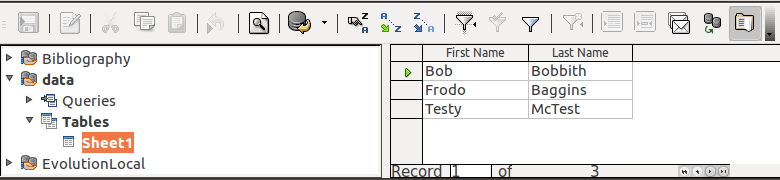
    4. On the left is a list of data sources. These should include the file you just made. Select it, then Tables, then Sheet1 (or the name of the sheet you want)

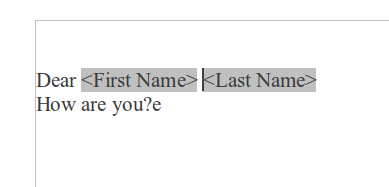
    5. You will see the data from the spreadsheet. Click and drag the column you want into your document. For example if I wanted First Name, I would click and drag the First Name column title and not an individual cell like Bob. You will notice it appears gray in your document. You are free to cut and paste it or change the formatting. These words will be replaced with the data in your spreadsheet. Note that Libreoffice can’t do conditional fields. For example let’s say you have

      Address1
      Address2
      City, State, Zip

      Some people have one address but not the other. Libreoffice will insert a blank line no matter what. You can get around this by using the “address block” feature but that’s very limited and won’t work for every use case. You can also try making conditional sections but with such difficulty in doing that, you might as well just make your text document in Python.

    6. Click Tools, Mail Merge Wizard or click the envelope icon in data sources. This stuff is mostly stupid and deals with preformatted address blocks, etc. I’ve never under any circumstance use them but you will need to disable them all. Work through each step and click next to continue:

      1. Select starting Document: Select current document.
      2. Select document type: In this example we intend to print or save the file so select Letter.
      3. Insert address block: Ensure “This document shall contain an address block” is unchecked.
      4. Create salutation: Ensure “This document should contain salutation” is unchecked.
      5. Edit document: By clicking the left and right arrow we can preview each page.
      6. Personalize document: This screen shows us the finished document which is editable.
      7. Save, print or send: What do you want to do this the finished document? You may save it, print it, or email it (may require additional setup). Save merged document will save the finished multi page document and Save starting document will save your template for later use.

    Suppressing blank mail merge lines

    Thanks to Juanito for the comment. You can in fact suppress blank lines (ex address 2) though it’s anything but intuitive.

    1. Insert field
    2. Ensure you are entering paragraphs instead of line breaks. Click view, nonprinting characters to check. Ex paragraph mark Screenshot from 2013-03-19 14:29:10
    3. Hover over field until name appears, e.g. mailmergedata.Sheet1.Address2, and note the name. If the name has spaces do this [file with spaces.Sheet1.Adddress 2]
    4. Place the cursor to the left of the field. 
    5. Click Insert, Fields, Other
    6. Click the Functions tab
    7. Select Hidden Paragraph
    8. In the Condition box, enter: NOT [field name from step 2], e.g. NOT [mailmergedata.Sheet1.Address 2]
    9. Click Insert (this might not cause any visible change)
    10. Click Close
    11. Click the View menu and make sure Hidden Paragraphs is unchecked
    12. Merge!

    Overall thoughts? Libreoffice is terrible. A hugely common use case is convoluted. Looks like Office 2010 also requires this conditional paragraph suppression too. The world marches backwards.

  • Adding new form in a formset

    Everything I read about adding a new form to a formset with javascript involves cloning an existing form. This is a terrible method, what if the initial forms are 0? What about initial data? Here’s IMO better way to do it that uses empty_form, a function Django gives you to create a form where i is __prefix__ so you can easily replace it.

    Add this under you “Add new FOO” button. In my case I have a question_form with many answers (answers_formset).
    [html]

    var form_count_{{ question_form.prefix }} = {{ answers_formset.total_form_count }};
    $(‘#add_more_{{ question_form.prefix }}’).click(function() {
    var form = ‘{{answers_formset.empty_form.as_custom|escapejs}}’.replace(/__prefix__/g, form_count_{{ question_form.prefix }});
    $(‘#answers_div_{{ question_form.prefix }}’).append(form);
    form_count_{{ question_form.prefix }}++;
    $(‘#id_{{ answers_formset.prefix }}-TOTAL_FORMS’).val(form_count_{{ question_form.prefix }});
    });

    [/html]

    This creates you empty_form right in javascript, replaces the __prefix__ with the correct number and inserts it, in my case I made an answers_div. See empty_form.as_custom, you could just do empty_form but that would just give the you basic form html. I want custom html. Make a separate template for this. Here’s mine but this just an example.

    [html]
    {{ answer.non_field_errors }}
    {% for hidden in answer.hidden_fields %} {{ hidden }} {% endfor %}
    <table>
    <tr>
    <td>
    <span class="answer_span">{{ answer.answer }} {{ answer.answer.errors }}</span>
    </td>
    ……etc…….
    </tr>
    </table>
    [/html]

    In your original template you can add the forms like this {% include “omr/answer_form.html” with answer=answer %}
    But for the as_custom you need to edit your form itself to add the function.

    [python]
    def as_custom(self):
    t = template.loader.get_template(‘answer_form.html’)
    return t.render(Context({‘answer’: self},))
    [/python]

    I find this method far more stable than trying to clone existing forms. It seems to play well with the javascript I have in some of my widgets. Clone on the other hand gave me tons of trouble and hacks needed to fix it.

  • Django get_or_default

    Quick hack today. Often I find myself wanting to get some django object, but in the case it doesn’t exist default it to some value. Specially I keep my end user configurable settings in my database. Typically I set this up with initial data so all the settings are already there, but sometimes I’ll add a setting and forgot to add it on some site instance.

    [python]class Callable:
    def __init__(self, anycallable):
    self.__call__ = anycallable

    def get_or_default(name, default=None):
    """ Get the config object or create it with a default. Always use this when gettings configs"""
    object, created = Configuration.objects.get_or_create(name=name)
    if created:
    object.value = default
    object.save()
    return object
    get_or_default = Callable(get_or_default)[/python]

    Now I can safely call things like edit_all = Configuration.get_or_default(“Edit all fields”, “False”) which will return my configuration object with the value set as False if not specified. Much better than a 500 error. There are plenty of other uses for this type of logic. Get_or_return_none for example. The goal for me is to stop 500 errors from my own carelessness by having safe defaults.

  • Django admin: Export ForeignKey subfields to XLS

    Last post I made an export to XLS tool for Django’s admin interface. A common request is to quickly export related field data as well. Today I’ll show you how to export foreign key fields, recursively. It doesn’t work for ManyToMany which are of course much more complicated since it can return more than one result! First I though it would be nice to have a view permission for my models. If I just want to export them, why would I need edit permission? This blog shows a quick way to get view permissions to all models. Note you could just use the edit permission instead if that works for you.

    This time AJAX is a must. I’m using it to insert html where I want it to dynamically construct the export view. This has the advantage of not getting caught up in loops of references referencing other references…uck recursion. I’ve heavily modified my files from the last post. If you really want to understand how all this works, I suggest you start there. Note I still use the export_simple_selected_objects function from before, left untouched. Here are my new views:
    [python]
    def get_fields_for_model(request):
    """ Get the related fields of a selected foreign key """
    model_class = ContentType.objects.get(id=request.GET[‘ct’]).model_class()
    queryset = model_class.objects.filter(pk__in=request.GET[‘ids’].split(‘,’))

    rel_name = request.POST[‘rel_name’]
    related = model_class
    for item in rel_name.split(‘__’):
    related = getattr(related, item).field.rel.to

    model = related
    model_fields = model._meta.fields
    previous_fields = rel_name

    for field in model_fields:
    if hasattr(field, ‘related’):
    if request.user.has_perm(field.rel.to._meta.app_label + ‘.view_’ + field.rel.to._meta.module_name):
    field.perm = True

    return render_to_response(‘sis/export_to_xls_related.html’, {
    ‘model_name’: model_class._meta.verbose_name,
    ‘model’: model._meta.app_label + ":" + model._meta.module_name,
    ‘fields’: model_fields,
    ‘previous_fields’: previous_fields,
    }, RequestContext(request, {}),)

    def admin_export_xls(request):
    model_class = ContentType.objects.get(id=request.GET[‘ct’]).model_class()
    queryset = model_class.objects.filter(pk__in=request.GET[‘ids’].split(‘,’))
    get_variables = request.META[‘QUERY_STRING’]
    model_fields = model_class._meta.fields

    for field in model_fields:
    if hasattr(field, ‘related’):
    if request.user.has_perm(field.rel.to._meta.app_label + ‘.view_’ + field.rel.to._meta.module_name) or request.user.has_perm(field.rel.to._meta.app_label + ‘.change_’ + field.rel.to._meta.module_name):
    field.perm = True

    if ‘xls’ in request.POST:
    workbook = xlwt.Workbook()
    worksheet = workbook.add_sheet(unicode(model_class._meta.verbose_name_plural))

    # Get field names from POST data
    fieldnames = []
    # request.POST reorders the data 😦 There’s little reason to go through all
    # the work of reordering it right again when raw data is ordered correctly.
    for value in request.raw_post_data.split(‘&’):
    if value[:7] == "field__" and value[-3:] == "=on":
    fieldname = value[7:-3]
    app = fieldname.split(‘__’)[0].split(‘%3A’)[0]
    model = fieldname.split(‘__’)[0].split(‘%3A’)[1]
    # Server side permission check, edit implies view.
    if request.user.has_perm(app + ‘.view_’ + model) or request.user.has_perm(app + ‘.change_’ + model):
    fieldnames.append(fieldname)

    # Title
    for i, field in enumerate(fieldnames):
    #ex field ‘sis%3Astudent__fname’
    field = field.split(‘__’)
    model = get_model(field[0].split(‘%3A’)[0], field[0].split(‘%3A’)[1])
    txt = ""
    for sub_field in field[1:-1]:
    txt += sub_field + " "
    txt += model._meta.get_field_by_name(field[-1])[0].verbose_name
    worksheet.write(0,i, txt)

    # Data
    for ri, row in enumerate(queryset): # For Row iterable, data row in the queryset
    for ci, field in enumerate(fieldnames): # For Cell iterable, field, fields
    try:
    field = field.split(‘__’)
    data = getattr(row, field[1])
    for sub_field in field[2:]:
    data = getattr(data, sub_field)
    worksheet.write(ri+1, ci, unicode(data))
    except: # In case there is a None for a referenced field
    pass

    # Boring file handeling crap
    fd, fn = tempfile.mkstemp()
    os.close(fd)
    workbook.save(fn)
    fh = open(fn, ‘rb’)
    resp = fh.read()
    fh.close()
    response = HttpResponse(resp, mimetype=’application/ms-excel’)
    response[‘Content-Disposition’] = ‘attachment; filename=%s.xls’ %
    (unicode(model_class._meta.verbose_name_plural),)
    return response

    return render_to_response(‘sis/export_to_xls.html’, {
    ‘model_name’: model_class._meta.verbose_name,
    ‘model’: model_class._meta.app_label + ":" + model_class._meta.module_name,
    ‘fields’: model_fields,
    ‘get_variables’: get_variables,
    }, RequestContext(request, {}),)
    [/python]

    admin_export_xls does the bulk of the work and actually creates your xls reports. We use a similar syntax to django queries to find out exactly what data we are looking for. Something like “field__work_study:company__placement__company__id” where field just makes it a unique html name, followed by the app:model, then each object. So here we know we have a work_study.company model. We take our row in the queryset and say row.placement.company.id. Of course it uses a recursive getattr instead.

    get_fields_for_model handles each ajax request for getting more fields. Now for the html I have two files
    export_to_xls.html
    [html]
    <style type="text/css">
    td, th {
    padding: 2px 0px 3px 3px;
    text-align: left;
    }
    </style>

    $(document).ready(function()
    {
    $(“#check_all”).click(function()
    {
    var checked_status = this.checked;
    $(“.check_field”).each(function()
    {
    this.checked = checked_status;
    });
    });
    });

    function get_related(name){
    $.post(
    “/sis/export_to_xls_related/?{{ get_variables }}”,
    {get_related: “True”, rel_name: name},
    function(data){
    $(“#field_” + name).hide(‘fast’);
    $(“#field_” + name).html(data);
    $(“#field_” + name).show(‘slow’);
    }
    );
    }

    <h2> Export {{ model_name }} </h2>

    <form method="post" action="/sis/export_to_xls/?{{ get_variables }}">
    <table>
    <tr>
    <th>
    <input type="checkbox" id="check_all" checked="checked" />
    </th>
    <th>
    Field
    </th>
    </tr>

    {% for field in fields %}
    <tr>
    <td>
    <input type="checkbox" class="check_field" checked="checked" name="field__{{ model }}__{{ field.name }}"/>
    </td>
    <td>
    {{ field.verbose_name }}
    </td>
    </tr>
    {% if field.related %}{% if field.perm %}
    <tr>
    <td></td>
    <td>

    </td>
    </tr>
    {% endif %}{% endif %}
    {% endfor %}
    </table>
    <input type="submit" name="xls" onclick=’$("#export_xls_form").overlay().close();’ value="Submit"/>
    </form>
    [/html]

    export_to_xls_related.html
    [html]
    <table>
    {% for field in fields %}
    <tr>
    <td>
    <input type="checkbox" class="check_field" checked="checked" name="field__{{ model }}__{{ previous_fields }}__{{ field.name }}"/>
    </td>
    <td>
    {{ field.verbose_name }}
    </td>
    </tr>
    {% if field.related %}{% if field.perm %}
    <tr>
    <td></td>
    <td>

    </td>
    </tr>
    {% endif %}{% endif %}
    {% endfor %}
    </table>
    [/html]

    I also use the modified change_list.html from last post. export_to_xls.html gets inserted into export_to_xls_related.html a potentially infinite amount of times which is all displayed on an overlay in the edit list view. When you click Submit you get an XLS file with all checked off fields. Hurray!

    TODO: Many to Many fields! This will be much harder. The only way to show them is either by repeating rows or smashing them all in one cell. This is the peril of trying to fit a potentially infinite dimensional object into a 2D spreadsheet.

  • Django admin: better export to XLS


    The goal here is to make a slick gui for selecting exactly what the user wants to export from Django’s Change List view. It will be an global action, so lets start there.

    [python]
    def export_simple_selected_objects(modeladmin, request, queryset):
    selected_int = queryset.values_list(‘id’, flat=True)
    selected = []
    for s in selected_int:
    selected.append(str(s))
    ct = ContentType.objects.get_for_model(queryset.model)
    return HttpResponseRedirect("/export_to_xls/?ct=%s&ids=%s" % (ct.pk, ",".join(selected)))
    export_simple_selected_objects.short_description = "Export selected items to XLS"
    admin.site.add_action(export_simple_selected_objects)

    [/python]

    This adds a global action called Export selected items to XLS. I went with xls instead of ods because xlwt is very mature and LibreOffice can open xls just fine. It’s limited by the max length of get variables because it just lists each id. See this bug report. Next is the view.

    [python]
    import xlwt
    def admin_export_xls(request):
    model_class = ContentType.objects.get(id=request.GET[‘ct’]).model_class()
    queryset = model_class.objects.filter(pk__in=request.GET[‘ids’].split(‘,’))
    model_fields = model_class._meta.fields

    if ‘xls’ in request.POST:
    workbook = xlwt.Workbook()
    worksheet = workbook.add_sheet(unicode(model_class._meta.verbose_name_plural))
    fields = []
    # Get selected fields from POST data
    for field in model_fields:
    if ‘field__’ + field.name in request.POST:
    fields.append(field)
    # Title
    for i, field in enumerate(fields):
    worksheet.write(0,i, field.verbose_name)
    for ri, row in enumerate(queryset): # For Row iterable, data row in the queryset
    for ci, field in enumerate(fields): # For Cell iterable, field, fields
    worksheet.write(ri+1, ci, unicode(getattr(row, field.name)))
    # Boring file handeling crap
    fd, fn = tempfile.mkstemp()
    os.close(fd)
    workbook.save(fn)
    fh = open(fn, ‘rb’)
    resp = fh.read()
    fh.close()
    response = HttpResponse(resp, mimetype=’application/ms-excel’)
    response[‘Content-Disposition’] = ‘attachment; filename=%s.xls’ %
    (unicode(model_class._meta.verbose_name_plural),)
    return response

    return render_to_response(‘export_to_xls.html’, {
    ‘model_name’: model_class._meta.verbose_name,
    ‘fields’: model_fields,
    }, RequestContext(request, {}),)

    [/python]

    Remember to set up your URLs. Next is the HTML. Maybe something like this

    [html]

    $(document).ready(function()
    {
    $(“#check_all”).click(function()
    {
    var checked_status = this.checked;
    $(“.check_field”).each(function()
    {
    this.checked = checked_status;
    });
    });
    });

    <h2> Export {{ model_name }} </h2>
    <form method="post" action="">
    <table>
    <tr>
    <th>
    <input type="checkbox" id="check_all" checked="checked" />
    </th>
    <th>
    Field
    </th>
    </tr>
    {% for field in fields %}
    <tr>
    <td>
    <input type="checkbox" class="check_field" checked="checked" name="field__{{ field.name }}"/>
    </td>
    <td>
    {{ field.verbose_name }}
    </td>
    </tr>
    {% endfor %}
    </table>
    <input type="submit" name="xls" value="Submit"/>
    </form>
    [/html]

    The javascript just makes the check all box work. Note I use jquery, if you don’t you will need to rewrite it. Very simple but it works. Now users won’t have to delete unwanted columns from xls reports. Notice how the user is left on the export screen and not happily back to the edit list. Some ajax can solve this. I’m overriding the global change_list.html which actually isn’t ideal if you use any plugins that also override it. Here’s what I added.

    [html]
    /static/js/jquery.tools.min.js

    $(document).ready(function()
    {
    $(“.button”).click(function()
    {
    if (
    $(“option[value=export_simple_selected_objects]:selected”).length
    && $(“input:checked”).length
    ) {
    $.post(
    “”,
    $(“#changelist-form”).serialize(),
    function(data){
    $(“#export_xls_form”).html(data);
    }
    );
    $(“#export_xls_form”).overlay({
    top: 60
    });
    $(“#export_xls_form”).overlay().load();
    return false;
    }
    });
    });

    <!– Overlay, when you edit CSS, make sure this display is set to none initially –>

    [/html]

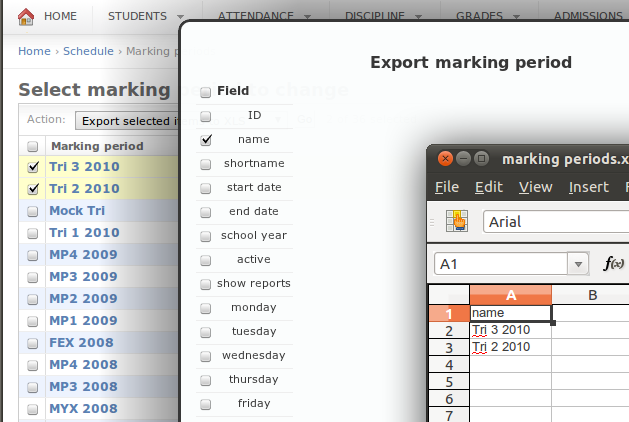
    I use jquery tools overlay to make a nice overlay screen while keeping the user on the change list page. Basically I want a div to appear and then load some stuff from ajax. What’s cool is that I just post the data to “” so the regular Django admin functions work without editing them for AJAX. Well I did add to the submit button onclick=’$(“#export_xls_form”).overlay().close();’ to close the window when submitting. Ok I’m a complete liar I also added get_variables = request.META[‘QUERY_STRING’] to the view as a cheap way to keep those GET variables. But hey it’s still works as a non ajax admin action and that’s cool.

    In the screenshot I added a CSS3 shadow and rounded corners to make it look better.

    What’s next? Well it would be nice if we could access foreign key fields. If this had some type of advanced search and saving mechanism, we’d have a full generic Django query builder. Hmm.

  • Isn’t IT supposed to save money?

    From this NY Times article  the New York City Department of Education (DOE) is spending $700 million on a payroll system. You know the type of thing I made as a hobby or any number of existing projects. Meanwhile teachers are being laid off. There’s some real administrative problems here, but there’s also some very big IT ones when $700 million is spent on effectively nothing. I would take a project like that for $50k plus hardware expenses, but actually I’d feel bad ripping of the DOE.

    IT is supposed to save money remember? Having machines work for you. If this isn’t happening you are doing it wrong. Last year I made a proposal to a certain school in New York to create a free and open source information system. It keeps payroll of student workers. It handles grades and general school data. It even integrates with products like SugarCRM and Engrade (free but not FOSS). The program brings what would have costs over $5000 a year to just $2000, a fee I charge for continued support. But the real savings is in efficiency. Student Worker Relational Database is saving time for teachers and staff. Remember, that’s what IT is supposed to do, computers working for you. Teachers can look up student data in seconds, rather than pour over various databases and Excel sheets. Principles can do complicated analytics in minutes rather than days.

    [Student Worker Database] brings together all the information that different people in the school -Administration, Teachers, CWSP, College Counselors, Dean of Student, Social Workers, etc – used to keep in different and not always integrated software. I can now have all this information integrated in one common report saving vary valuable time. The grade analytic feature has also given us the possibility of accessing and processing data much faster and using it to inform teachers, students and parents.
    – Maria Andreau, Assistant principle of Cristo Rey New York High School

    The open source model allows other schools to potentially contribute as well. Unlike some industries, education isn’t really about “beating” your competition. Yes every school wants to be the best, but that doesn’t mean you want other schools to fail. If another school benefits from work done on an open source project, it actually benefits the early adopter school. That’s why I don’t believe proprietary systems have any place in the education environment. There may be some models that it makes sense, but not schools. Schools are the perfect environment for open source. They aren’t as competitive. They have very common needs. They attract people who are in it to help people, not just the money (which isn’t so glamorous). But where is open source in the industry? It’s near non existent. There are some exceptions, but most schools use Windows, MS Office, proprietary school information systems, proprietary fund raising tools, etc.

    If there is a beacon of hope, it’s that these proprietary systems are awful. The opportunity for a hugely successful open source project is here. The information system I replaced with year was a 90’s DOS application ported to Windows. Updates generally include a new picture and marketing about how modern the system is. Even the newer web based systems are expensive and don’t offer integration outside their select partners.

    I have more ideas, stay tuned!

  • Linux in schools

    My most popular post is the Linux and Active Directory post. Today I’ll give an update to the project and what advantages and disadvantages Linux has. The project was to set up a trail run of Linux at the school I work at, in the hopes that by the discontinuation of Windows XP, we could move fully to Linux. Currently there are around 30 Netbooks, 4 desktops, and a mostly Linux servers with one Windows application server.

    Advantages

    In a short survey I found most people believed Linux to be faster. People also generally thought Linux was saving money. On two Pentium 4 desktops, memory was upgraded to 1GB and Ubuntu was installed. The difference was night and day in terms of performance. These computers would have had to been replaced otherwise. Surprisingly to me, users reported the Ubuntu machine to be much more stable! I’m probably a bit jaded after one too many x server crashes while switching monitors. I suspect I have more problems because I have higher demands, most work users don’t care about PPA’s and proprietary video card drivers. While not directly related, I’ve been installing Ubuntu on a considerable number of student’s laptops as they bring them in broken. I feel exposing them to an alternative to the consumer culture of buying the new version/computer every year is valuable. Most student’s don’t know there are other options than buying or pirating the latest software and replacing their hardware every two years. Ubuntu really shines on simple home applications, where the user just needs hassle free internet access. Being able to clone machines fairly easily is nice too. There only needs to be one image for the entire school. I don’t have the data to prove it yet, but I suspect the long term costs of supporting Linux will be minimal. The machines, once setup right, should be able to just sit and run. Only a few things, like Google Chrome and LibreOffice, really need updated. Chrome has a wonderful repo that it comes with that seems to work on any version.

    Disadvantages

    The time to get the image ready is immense! It’s about 20 times harder to get a Linux image ready than Windows. Printer support sucks. Auto detect never works ever for me. Some commercial laser printers just don’t work. Others require fiddling with the right ppd file. Even when you know what to do, the interface is terrible and involves waiting for it to time out over and over while searching for a driver you know it won’t find. Another problem is there just isn’t anything like folder redirection in Linux. You either have to put everything on nfs or samba. Or use a Dropbox like solution, which there aren’t even any decent open source implementations of. Our teachers need to take home work and have this be seamless. Can’t be done in Linux. Another issue is switching monitors. X will crash. Even one in 20 times is enough to not deploy, since that means lost work. Getting Active Directory support is a pain as previously discussed. The initial joining a domain isn’t hard, it’s all the little bugs and limitations. It also adds an extra minute to startup time.

    Any Linux migration will probably involve LibreOffice. LO has problems. Power point import and export is terrible. Also it’s very buggy. It’s nice to have the latest version of LO, since it’s one the most used programs. But each update breaks the default configuration! I have to manually set the default file format each time, which is absurdly difficult.

    sudo sed -i ‘s/<prop oor:name=”ooSetupFactoryDefaultFilter”><value>writer8</value>/<prop oor:name=”ooSetupFactoryDefaultFilter”><value>MS Word 97</value>/g’ /usr/lib/libreoffice/basis3.3/share/registry/writer.xcd

    Calc is generally bad. Why does pressing ctrl-down go to row 1048576 instead of the last row with data? Why does EVERYTHING increment. If I type “ID 200” and drag it down, the next becomes “ID 201”, etc.  Auto filtering likes to remove itself when you switch sheets. It has some features though on Microsoft. I honestly don’t see how Excel gets away without having regular expressions. Also MS Office just can’t handle open document files. Students like to have lots of random file formats they somehow make. LibreOffice opens them all, while MS Office can’t even open MS works files! I’ve been a long time OpenOffice user. Recently I’ve been playing with MS Office just to see what others are using. Now I hate all office software. Don’t even get me started on that horrid ribbon.

    Is it time to switch?

    I have a lot of bad things to say about Linux. But trust me, if I reviewed Windows or OSX, well it would be like watching a Angry Video Game Nerd episode. I have little patience with bad technology. Linux is bad. It sucks. It really really sucks. But so does everything else. Building an operating system and surrounding environment is just hard. No one has it worked out yet. Linux is working out great in student netbooks and administrative staff desktops. I have no plans to deploy it on teacher laptops. No folder redirection and terrible monitor support are the blockers here. I’m really hoping by the end of life for XP, Linux will be better.

    One huge factor in allowing me to play with switching users to Linux is web applications. I’m not a sys admin. My real job is a developer and I’ve been replacing costly, unfriendly applications with open source ones, including my own. For users who just need web access, Linux rocks! It’s faster, it’s stable, it’s better. It will reduce support costs and let you get away with not upgrading computers. Lose Outlook, Office, and your legacy Active X web apps, and the switch to Linux is easy. Next post I’ll update my progress on my school information system and future plans for educational administrative software. Stay tuned, I promise it will be more optimistic.


  • Buy Linux Preinstalled?

    I felt like needlessly spending money so I bought a new computer! I got a System 76 Gazelle Professional. It’s a high end laptop that comes with Ubuntu. If you’re looking at buying a computer that comes with Ubuntu you are probably wondering if there is any advantage. Does everything just work at all times perfectly? Yes and no.

    The Good

    With Linux reinstalled you can expect everything to just work out of box. No downloading proprietary drivers, this machine is made to work, not to appease RMS. It’s really a considerable time saver rather than researching hardware, installing yourself, etc. This is the first computer I’ve ever purchased that the first thing I did wasn’t install a new operating system. It’s close to a stock Ubuntu image, but some good changes have been made. The finger print reader works for one! It’s shocking, I’ve had a finger print reader for years in Linux and it’s always been a situation where it works, but works terribly and so I always disable it. The Gazelle has “fingerprint-gui” installed which works at all prompts. Login, terminal, gksu, even gnome screen saver.

    System 76 didn’t put any bloatware unlike any major computer vendor. This makes it a great choice for people who don’t know how to install an operating system. Techie’s probably don’t think about this so much, but really it will make you cry to see a new i5 running slow from all the pre-installed crapware. Of course this works out great for the looters who get people to think they need a new computer every two years.

    The Bad
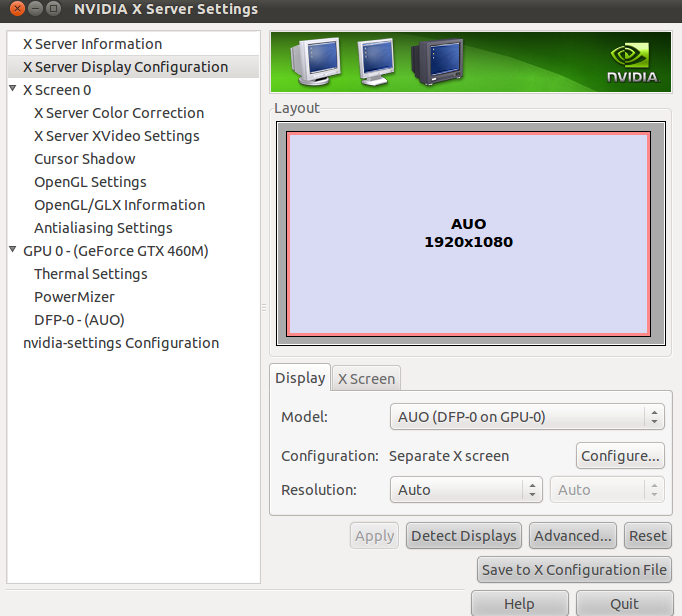
    While I generally like this laptop, and it’s way better than buying one with Windows, it doesn’t make Linux perfect. The USB 3.0 ports don’t work right after suspend. NVidia proprietary drivers still suck. There’s really only so much System 76 can do here short of reverse engineering the drivers better than Nouveau, which only gets you about 10% the performance.  The GUI for changing monitors is an abomination.

    It has too major issues. First WTF is X server? Obviously if you are reading my blog you probably know. But really a non techie doesn’t give a damn what X Screen 0 is. It’s very unclear how the hell one adds a second monitor using this tool. The gnome tool only works with open source video drivers. Second even for the system admin, it takes 10 clicks to switch to a monitor! That’s just stupid. Also if you remove the second monitor, it doesn’t detect it. If you disable the laptop monitor then unplug the second, you have no way to switch back! What was NVidia thinking!? That said I haven’t had X freeze once so far. My old Intel gpu thinkpad would crash all the time! Ok actually 10% of the time when switching monitors. That’s unacceptable for a supposedly well supported open source video driver. Performance wise the NVidia card works well. I tried out Oil Rush and had no problem running the graphics intense game.

    Another point is that you might think a Linux computer would be cheaper since there is no software license fee. This is just not true. Windows licensing for  OEM is very cheap. Even a company like Dell often charges more for Linux computers (because they don’t seem to get included in sales). System 76 is a small company so you can’t expect them to be compete well price wise. You end up with computers that are about the same price as the larger manufacturer’s Windows machines. Also larger companies make money by putting crap on your computer.


    Overall I would say it’s worth going for a Linux preinstalled computer. Just don’t expect it to cost less nor to make Linux work flawlessly. It saves you from fighting unsupported hardware. Wading through new hardware with Linux is nightmare filled with land mines such as Nvidia Optimus video cards that don’t work at all in Linux. Also you are supporting a small Linux friendly business rather than throwing money at Microsoft for a product you don’t intend to use. The only exception might be if  you are looking for very specific features. There just aren’t many Linux friendly computer vendors, so if you want a touch screen for example, you may be out of luck.

  • Linux netbooks fail

    A few years ago there were several Linux netbooks on the market from companies like Asus, Dell and HP. I see them from time to time. Every one with the original operating system is broken. I’ve seen no exceptions. If you were a non technical consumer trying out the Linux thing, you probably think it’s a scam that stole $300 from you and are happily back using Windows right now.

    What happened?

    The PC makers decided to put in 4GB solid state drives to make them as cheap as possible. Next they throw in Ubuntu or some other custom distro on it and offered no support. As soon as a few kernel updates came out the machines filled up with disk space. Thanks to automatic updates or perhaps user who didn’t know what to do, the updates broke leaving unbootable systems. I’ve seen a few. They seem to get to GDM them can’t go further. Logging in brings you the to the log in screen…

    Today I see I made the same mistake. I installed Ubuntu one of these broken netbooks. I uninstalled everything I could think of, but still has about 2.6GB of disk space. Now I got the computer back about 2 months later broken again. It tried to do an update, ran out of space, couldn’t boot. Ubuntu keeps old kernels around just in case, it never deletes them. Three updates is all it took to bring it down, it was a ticking time bomb. Now it’s easy to blame the OEM for this, obviously they should have seen it coming. Asus, with their customized Xandros, obviously didn’t care one bit. Some of their systems broke on the first update. Why on Earth should a system update itself to death? It’s sad to think everyone who might have been exposed to Linux with one of these netbooks must have been burned by it. This time I’m disabling updates.

    Well here’s an idea #27342