Update 2013-08-20: Here is a bug report I submitted about unclear documentation.
A less developer oriented post today. I find there to be an incredible lack of tutorials on how to mail merge in LibreOffice. So I made my own.
How to Mail Merge with LibreOffice
This tutorial assumes you have an xls or ods file with data you want to “merge” to a document.
Making labels?
Then do this instead. The documentation is still rather unclear. You will need to use the Edit, Exchange databases as described below. I’ve also noticed if I try to print directly as the documentation would leave you to believe, it gives me blank pages in between each sheet! To solve this, set up the labels but instead of hitting print, select Tools, Mail Merge Wizard as proceed as described below. Essentially you are still performing a mail merge, except by starting from New, Labels, it will take care of the otherwise complex formatting of a label.
Step 0 if using Ubuntu – Ubuntu doesn’t include the full LibreOffice suite by default (see bug report). It includes a minimal version. If you try to use a feature that isn’t installed it will crash or just not work. Lovely. Install the full version of libreoffice in by opening Ubuntu software center, search for Libreoffice, click install. Or via command line
sudo apt-get install libreoffice
-
Ensure you have proper headers on your spreadsheet and save it. Take note where you save it to!
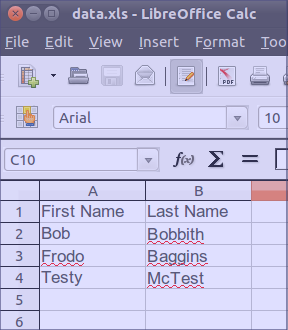
-
In Writer, Click Edit then Exchange Database… Then click Browse. Select the file you just made

Why is it named exchange database? -
Click View, Data sources (or press F4)
-
On the left is a list of data sources. These should include the file you just made. Select it, then Tables, then Sheet1 (or the name of the sheet you want)

-
You will see the data from the spreadsheet. Click and drag the column you want into your document. For example if I wanted First Name, I would click and drag the First Name column title and not an individual cell like Bob. You will notice it appears gray in your document. You are free to cut and paste it or change the formatting. These words will be replaced with the data in your spreadsheet. Note that Libreoffice can’t do conditional fields. For example let’s say you have
Address1
Address2
City, State, ZipSome people have one address but not the other. Libreoffice will insert a blank line no matter what. You can get around this by using the “address block” feature but that’s very limited and won’t work for every use case. You can also try making conditional sections but with such difficulty in doing that, you might as well just make your text document in Python.

-
Click Tools, Mail Merge Wizard or click the envelope icon in data sources. This stuff is mostly stupid and deals with preformatted address blocks, etc. I’ve never under any circumstance use them but you will need to disable them all. Work through each step and click next to continue:
- Select starting Document: Select current document.
- Select document type: In this example we intend to print or save the file so select Letter.
- Insert address block: Ensure “This document shall contain an address block” is unchecked.
- Create salutation: Ensure “This document should contain salutation” is unchecked.
- Edit document: By clicking the left and right arrow we can preview each page.
- Personalize document: This screen shows us the finished document which is editable.
- Save, print or send: What do you want to do this the finished document? You may save it, print it, or email it (may require additional setup). Save merged document will save the finished multi page document and Save starting document will save your template for later use.


Suppressing blank mail merge lines
Thanks to Juanito for the comment. You can in fact suppress blank lines (ex address 2) though it’s anything but intuitive.
- Insert field
- Ensure you are entering paragraphs instead of line breaks. Click view, nonprinting characters to check. Ex paragraph mark

- Hover over field until name appears, e.g. mailmergedata.Sheet1.Address2, and note the name. If the name has spaces do this [file with spaces.Sheet1.Adddress 2]
- Place the cursor to the left of the field.
- Click Insert, Fields, Other
- Click the Functions tab
- Select Hidden Paragraph
- In the Condition box, enter: NOT [field name from step 2], e.g. NOT [mailmergedata.Sheet1.Address 2]
- Click Insert (this might not cause any visible change)
- Click Close
- Click the View menu and make sure Hidden Paragraphs is unchecked
- Merge!

Overall thoughts? Libreoffice is terrible. A hugely common use case is convoluted. Looks like Office 2010 also requires this conditional paragraph suppression too. The world marches backwards.

 Technology Against You
Thank-you so much! I’ve been trying to perform an MM for the last hour and failing miserably. All I wanted to do was add a personalized salutation to the start of the letter, and the MM Wizard was useless in this regard. (Although it seemed to be letting me create the salutation, it failed to substitute in the database fields.) The OO/LO documentation was not helpful here either. Your method of dragging database fields directly into the document works.
Thanks again!
LikeLike
Star Office, Open Office and now LibreOffice. Great programs – absolutely crap mail merge. It’s been just as bad for at least 10 years and I don’t know why they don’t fix it. There’s never any decent information available – apart from yours – and the “salutations” block is a sad joke. I’ve worked in many offices and mail merge is a routine job – if this isn’t sorted this freeware will never be able to compete which is a great shame as it’s the only feature holding it back.
LikeLike
Hi again – I’ve just tried using your method and it works! Briliant – I very nearly went back to using MS Office yesterday. I’ve emailed the team that develop LibreOffice to see what they have to say.
LikeLike
David – I contacted the people at LibreOffice and they politely suggested that due to lack of funding if I wanted to re-write the help page myself I could. So I did. It should be changed in the near future to reflect your brilliant (simple) solution. Thank you so much again. I can understand LibreOffice’s problem as those help pages go back 15 years and there are an awful lot of them …
LikeLike
Cool. I think the most frustrating issue is that in some screens you can select an xls file for your source but in others only database files. Wish I had time to hack on Libreoffice code.
LikeLike
Thank you for this explanation!
You may want to add before Step 2: “Open Writer”.
Is there a way to merge without the page break between each merged “letter”?
LikeLike
Added about Writer.
I don’t think LO supports this actually. You could search and replace the page break but that’s lame. http://www.oooforum.org/forum/viewtopic.phtml?t=134451
LikeLike
tq very much. I did get help reading your tutorial and progressed. May God bless you.
LikeLike
You are a lifesaver. Thanks.
LikeLike
Thanks — exactly what I was looking for. I note that LibreOffice on a fresh installation of Ubuntu 12.04 will crash without error when selecting “Edit > Exchange Database”. This is due to some missing packages, and can be solved with the below line, which installs the entire LibreOffice package, rather than the minimal version that comes pre-installed on Ubuntu.
sudo apt-get libreoffice
LikeLike
Very helpful but I still cant get it to work. I believe its to do with identifying the outgoing server port number. It set at 465 and my outgoing mail is smtp.gmail.com
Currently, I get all the way to sending and then it locks up..
Can you shed some light on this David?
Thanks.
LikeLike
Try using 587 as the port number (TLS), this worked for my provider. There is a bug registered for libreoffice that it should also support SSL, see https://bugs.freedesktop.org/show_bug.cgi?id=41806
It saisa.o. “It takes some detective work to find that TLS is supported at port
587.”
LikeLike
There is a gross way to hide an entire line if a field is empty:
1. Insert ye field;
2. Hover over field until name appears, e.g. mailmergedata.Sheet1.Address2, and note the name;
3. Place the cursor next to the field;
4. Click Insert, Fields, Other;
5. Click the Functions tab;
6. Select Hidden Paragraph;
7. In the Condition box, enter: NOT [field name from step 2], e.g. NOT mailmergedata.Sheet1.Address2;
8. Click Insert (this might not cause any visible change);
9. Click Close;
10. Click the View menu and make sure Hidden Paragraphs is unchecked;
11. Merge!
Note that if you skip #10, the merged document still hides the blank line (tested on LibO 3.5.7.2), but the preview in the Mail Merge Wizard does not.
Made of easy =P
LikeLike
Can the output be saved as separate files with filenames capturing merge fields?
LikeLike
can output be saved in individual files automatically with merged field as filename?
LikeLike
many thanks.
Like some other of your readers I had assumed to start at the Mail Merge Wizard, which was hopeless.
Your solution, while non-intuitive actually gives me a copmarable result to MS-Word, really easy once you know how !
I found the s/sheet had to be saved in ODF format, not XLSX, maybe some other formats will work too, but xlsx doesn’t seem to.
Great job on the post, thanks again.
LikeLike
A lot of pulling out my hair trying to figure this out, even with the LibreOffice 4.1 manual. Your tutorial was worked. Thanks so much!
LikeLike
VBox – you’ve probably had an answer by now to your query of March 21st, but yes, you can use a mailmerge field as a file name.
When you open your merge template, select File > Print and a dialog window will pop up to ask “Your document contains address database fields. Do you want to print a form letter?”
Click ‘Yes’
You should then see a Mail Merge dialog window with a preview of your data at the top and underneath ‘Records’ on the left and ‘Output’ on the right. Under ‘Output’ select ‘File’ and then ‘Save as individual documents’, tick (check) ‘Generate file name from Database’ and then select the field you want to use as a file name. I use a custom field in my spreadsheet comprising a concatenation of two other data fields.
The only drawback is that each filename will be suffixed with a 0 before the file extension, but you can remove these manually later if you need to.
LikeLike
I am struggling to format numeric merge fields. Even though the spreadsheet data is formatted as currency and I have applied currency to the merge fields in the mail merge template (right click > number format > category Currency > format GBP) the resulting merged documents just display plain numbers and ignoring decimal places. What do I need to do to correct this, please?
LikeLike
Gillian,
I just figured this out a second ago…it was driving me bonkers for about an hour. Once you drag the field into place however you normally do it, double click it. In the window that pops up, there’s a radio selection for “From Database” or “User Defined” in the center-bottom. This is BS because the ability to save formats in fields has been broken in Base for a while now.
But you can user define, then hit “Other” in the dropdown box. I finally got fractions…
LikeLike
This guide was exactly what I needed — you’ve saved me hours trying to work it out. Many thanks David!
LikeLike
A lifesaver! However, after adding fields, merging the document, and saving the starting document for later use, when I reopen the starting document, the field are gone, and all I have is page 1 of my merged document. What am I missing?
LikeLike
Just figured out out: if I save the starting file in a template format (.stw), my field are preserved. How I wish for the old Word Perfect mail merge.
LikeLike
“Step 0 if using Ubuntu – Ubuntu doesn’t include the full LibreOffice suite by default (see bug report). It includes a minimal version. If you try to use a feature that isn’t installed it will crash or just not work. Lovely. Install the full version of libreoffice in by opening Ubuntu software center, search for Libreoffice, click install. Or via command line
sudo apt-get install libreoffice”
Thank you so much!
this step saved the use of Ubuntu over Windows at my office
LikeLike
Thanks for the post! It got me through this UX nightmare. Here’s some things that tripped me up / got me out of trouble. Feel free to incorporate them into your post.
The data source ‘oldnameforit’ was not found
If you move the data source and give the new data source pointing to it a different name libre office is terribly unhelpful and directs you to the wrong dialog. Once you have added the new data source you then have to correct all the fields as they know which datasource they belong to (bonkers imho). To be able to see what fields need fixing in your document turn on: ‘view – field names (ctrl+f9)’. Ref: forum.openoffice.org post on missing data source
A tale of two not quite the same wizards
As alluded to in other comments if you want to name your files from your data source, don’t use the “mail merge wizard”, it doesn’t support it. Instead add one or more fields to your document and then hit ‘file – print (ctrl+p)’, it will prompt to do a form letter providing a completely diffierent wizard (go figure), which does support file naming.
Fixing trailing 0 on files
If you want to use a field to name your files but don’t want the trailing zero, add an X to the end of the filename in your field (to make it unambiguous to match) then run this on a bash console in the output folder:
rename -n 's/(.*)X0.pdf/$1.pdf/' *X0.pdf  # preview

rename    's/(.*)X0.pdf/$1.pdf/' *X0.pdf  # strip the X0 off the filenames
Linux tools FTW.
Other hidden features
* ‘edit – fields’. Make of that what you will.
* Hit F4 to view the data sources.
I was am using libreoffice v4.1.3.2 on Linux Mint 16
Cheers
Tim
LikeLike
Thanks for a nice howto. There is one very important thing that is missing in the beginning. You need to check if the database is installed (which for some reason it is not on Ubuntu). If the database is not installed you will get no warning, the only thing you see is that sometimes the howto does not match what you see in the instruction. I do mail merge once a year, and every time I spend an hour to figure it out every year.
To check if data base is installed start libreoffice and try to create a “Base Database” if it is not installed nothing will happen. You will get no information about how to install it or anything else that might be useful. To install in in Ubuntu run
sudo apt-get install libreoffice-base
Then the rest of the howto will work.
LikeLike
It’s now September 2015, I’m on LibO Writer 5.0.1.2, and this tutorial is still a life-saver. Thank you!
LikeLike
Thank you for straight forward, easy to follow instructions!
LikeLike
I was struggling with this especially poorly documented bit of LibreOffice and your article has been a lifesaver. Thank you!
LikeLike